Triggering an onboarding sync session to your HRMS (Frontier e-HR/TimeSoft)
Permission level required: ✅ Entity Manager
Written By RecruiterPal Helpdesk
Last updated 3 months ago
1. Click on the Hire > Onboarding
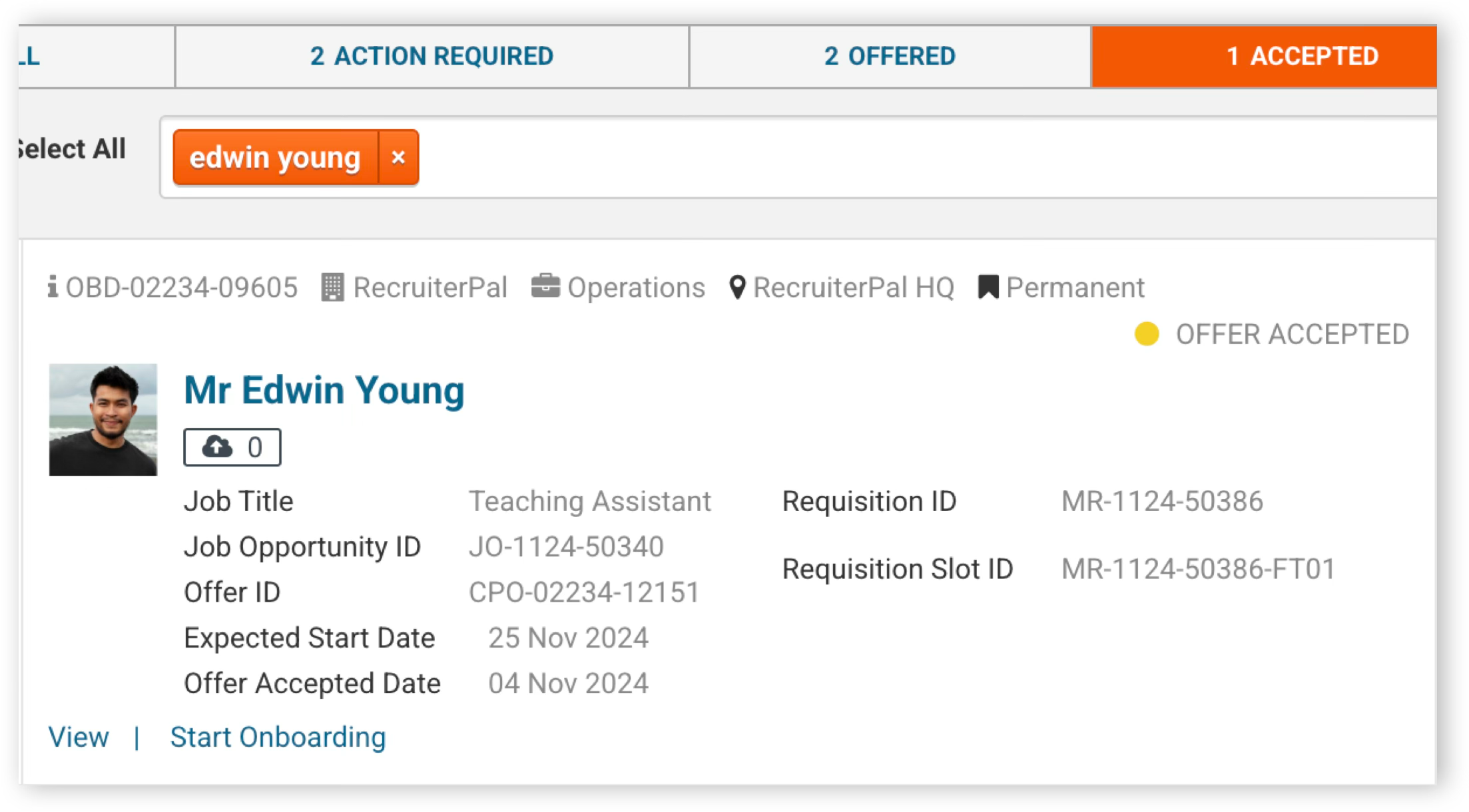
2. Click on the Accepted tab, then key in the candidate's name and press Enter
3. Click Start Onboarding then confirm the action in the dialog box to proceed
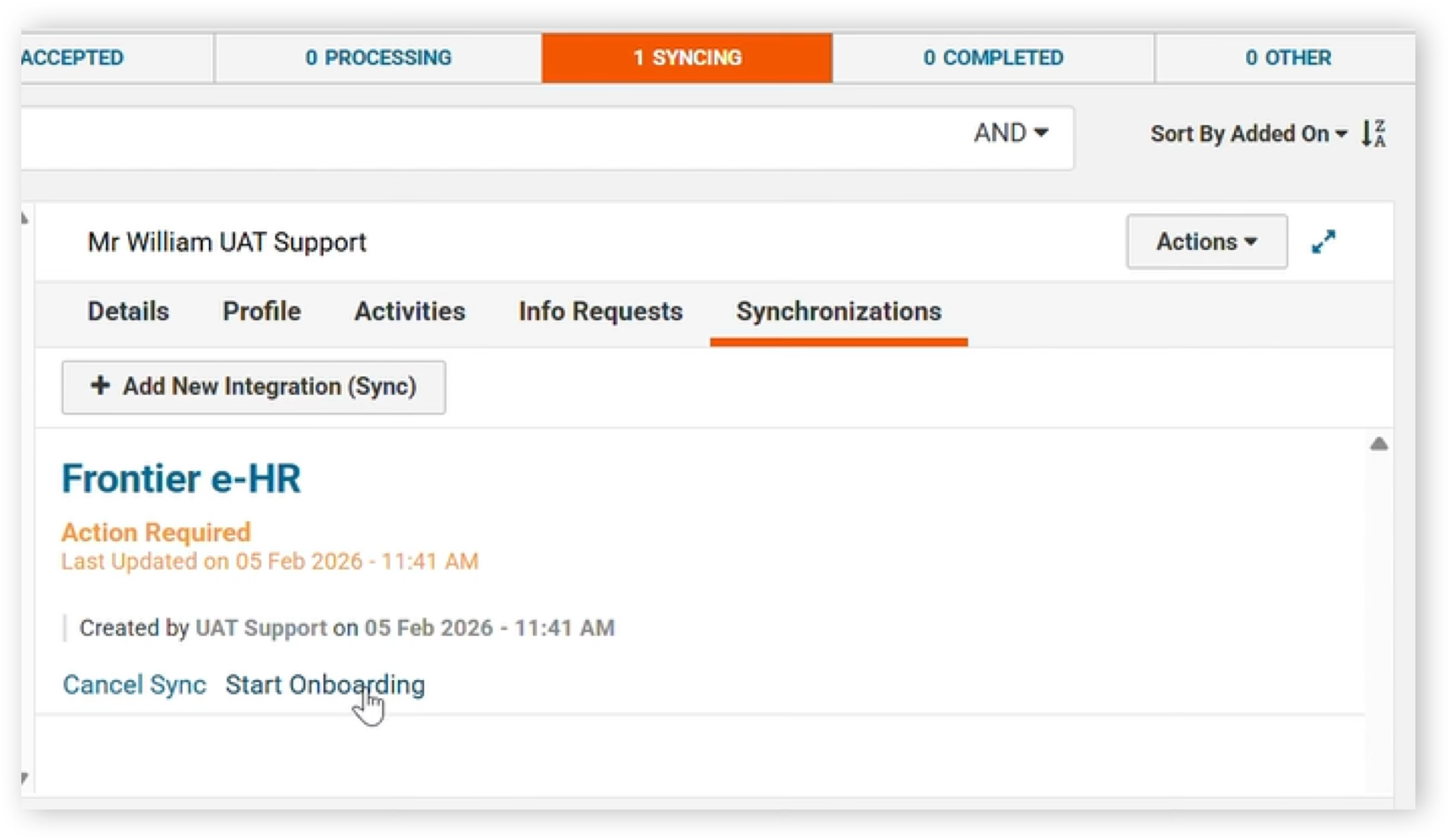
4. The candidate will automatically move to the Syncing pipeline. Click View for the candidate, then, on the right side of the candidate details page, click the Synchronizations tab then Start Onboarding
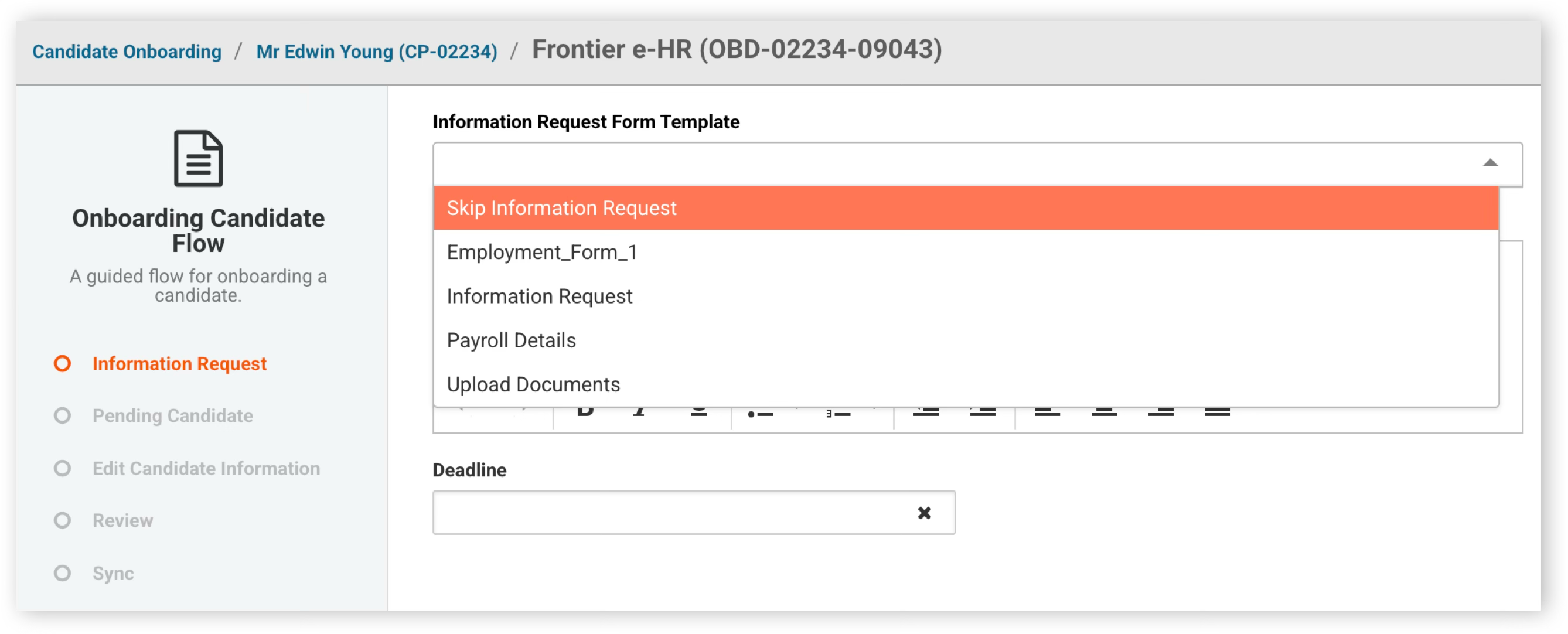
5. Select the Information Request Form Template and enter the required details (e.g., Instructions and Deadline). Then, click Next, followed by Send Email
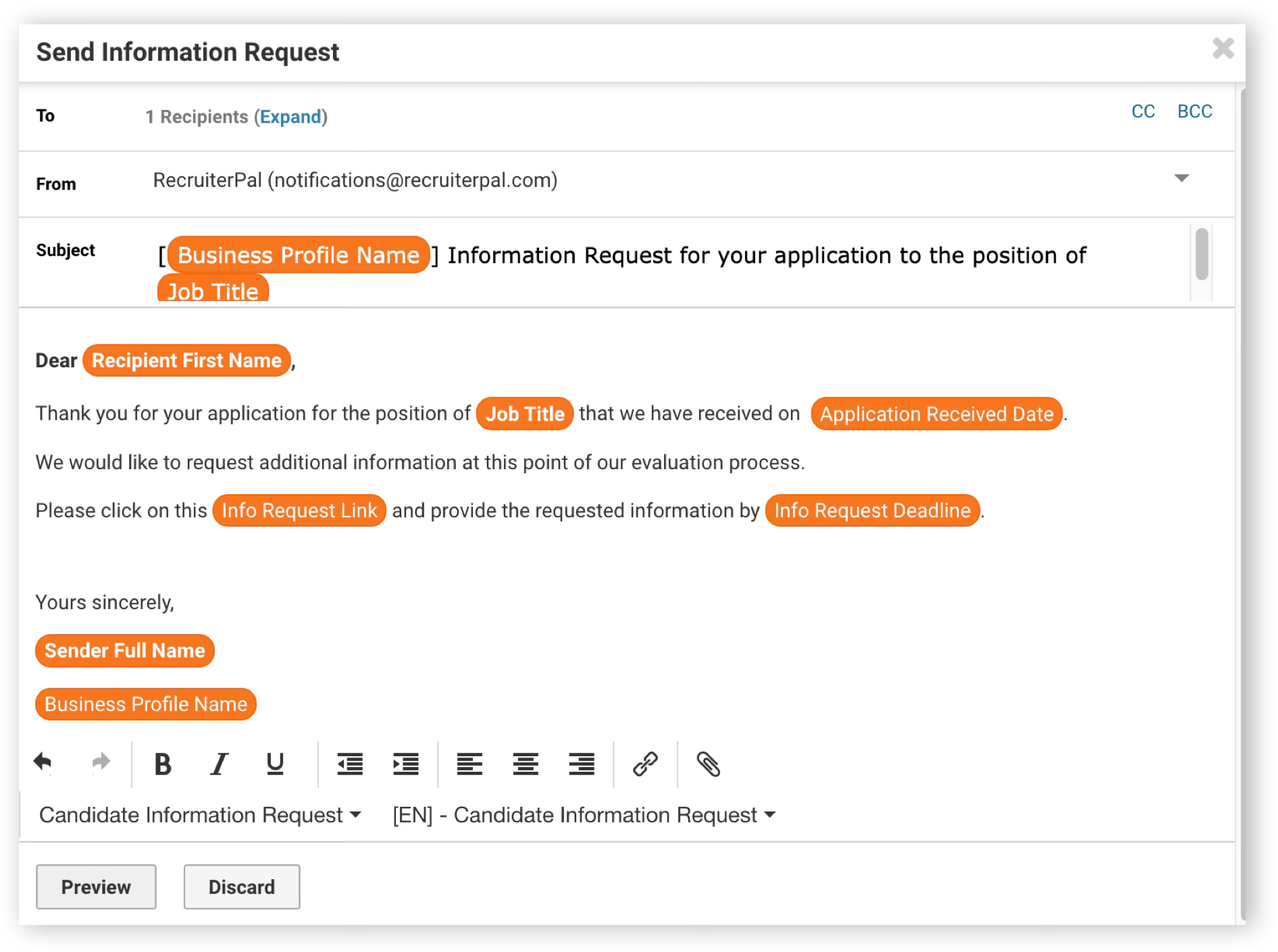
6. Select sender email then Select the Email Template Type & Template
7. Click Preview then Send
8. Once the candidate has completed the information request, you will be able to start verifying if the data required by your HRMS is available
9. Click on the Syncing pipeline. Under the candidate, click View, then select the Synchronizations tab and click Resume Onboarding

10. Fill out required info then click Next
11. Review all the information and click Submit
12. The next day, the employee will be onboarded into your HRMS
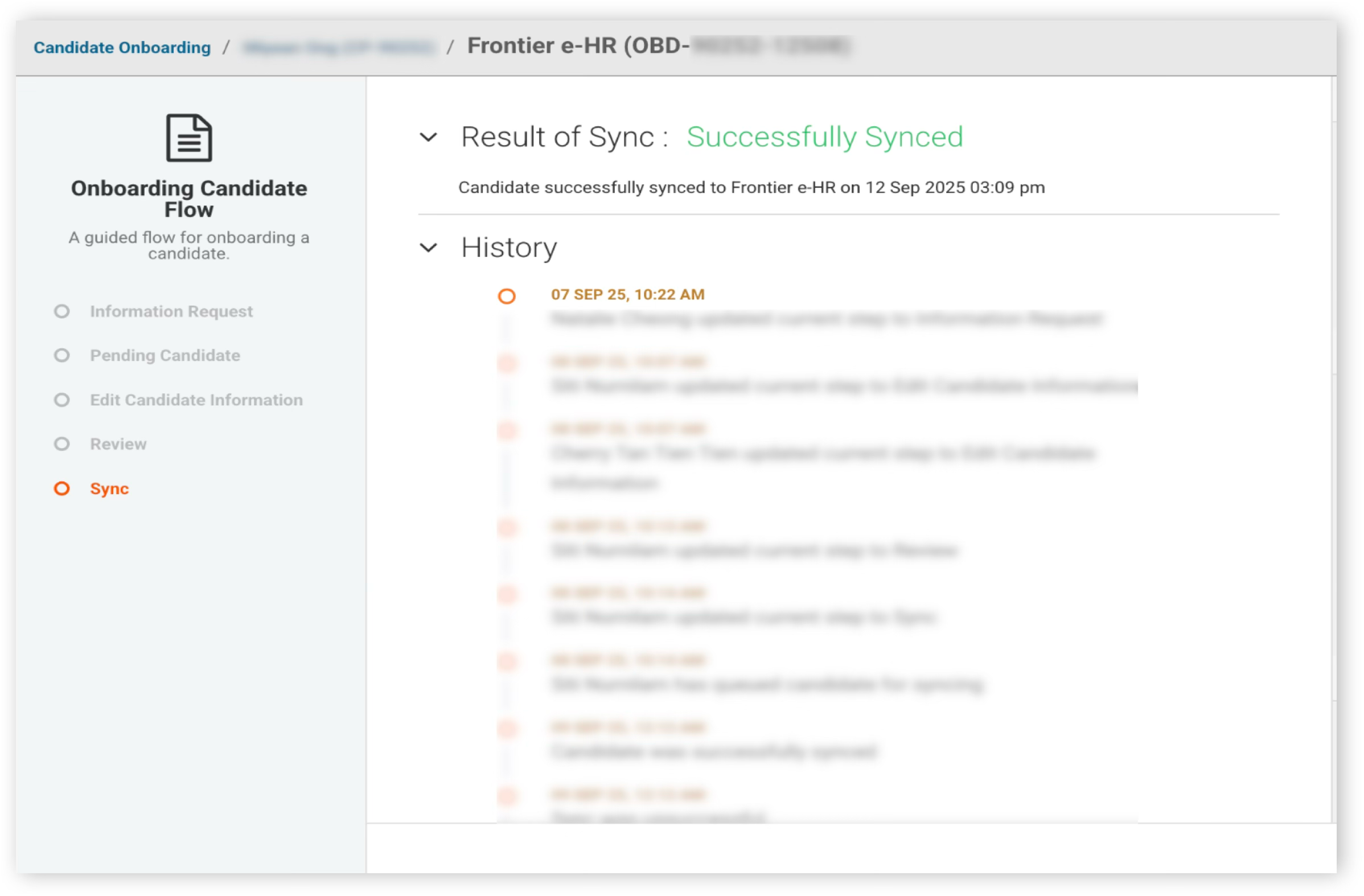
In the event of any error during the candidate onboarding sync to your HRMS, your HRMS will trigger an email notification to your HRMS system administrator.
Was this helpful?